

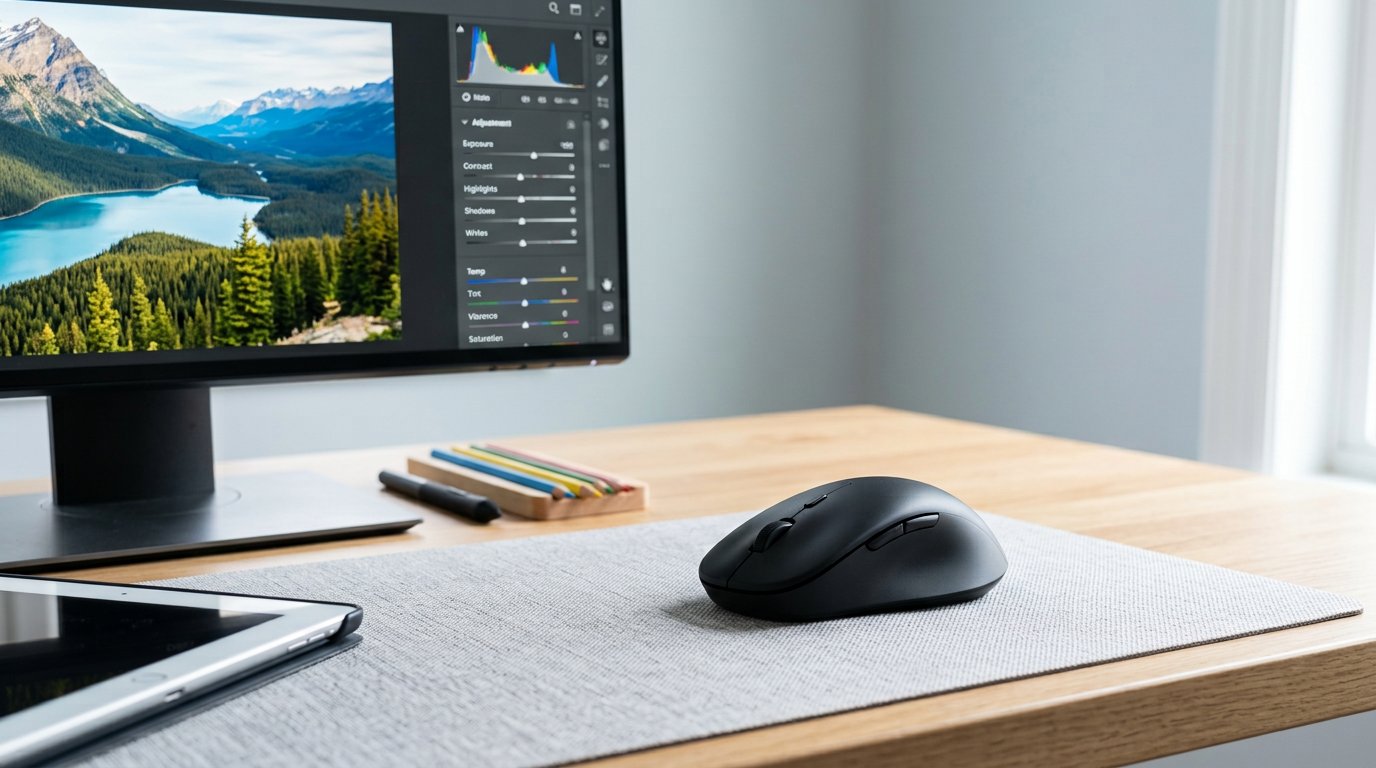
There’s no single best mouse for graphic design, and any list that hands you one is dodging the real question. The best mouse for photo editing isn’t a different animal — same workflow, different name. What matters is what you do with it: scroll big canvases, map shortcuts to your thumb, retouch at 100% zoom, drag sliders for hours. The DPI race is a distraction — most designers never feel the difference between 8,000 and 25,600. Below: the four jobs, picks by workflow, the pro button setup, and the trackpad-vs-tablet question. Want the deeper picture on sensors and DPI? The computer mouse buying guide covers it.
What Designers Actually Use a Mouse For
Strip away the spec sheet and a design mouse has four jobs. One: scrolling — big Photoshop canvases, huge Lightroom grids, and the horizontal scroll users keep saying they can’t live without. Two: shortcuts — zoom, undo, brush size, and pan under your thumb instead of on the home row. Three: precision — fine selections, brushing, and retouching at 100% zoom. Four: sliders — exposure, HSL, everything, all day.
The sensor handles all four fine. What makes or breaks the day is the workflow: a scroll wheel that doesn’t get old, buttons you can reach, a shape that survives 8 hours. And the honest pro reality: one working photographer on r/photography runs the Wacom for dodging and burning, and keeps "a mouse/keyboard" for Lightroom sliders. They split the work.
Best Mouse for Graphic Design & Photo Editing: The 2026 Picks
The best mouse for designers in 2026 depends on your workflow, so here are the four that cover it:
| Mouse | Workflow | Price (2026) |
|---|---|---|
| Logitech MX Master 4 | Default, all-round | ~$120 |
| Razer Pro Click V2 | Button customization | ~$100 |
| Logitech G502 X | Shortcut-heavy retouching | ~$100 |
| Logitech Lift | All-day comfort | ~$70 |
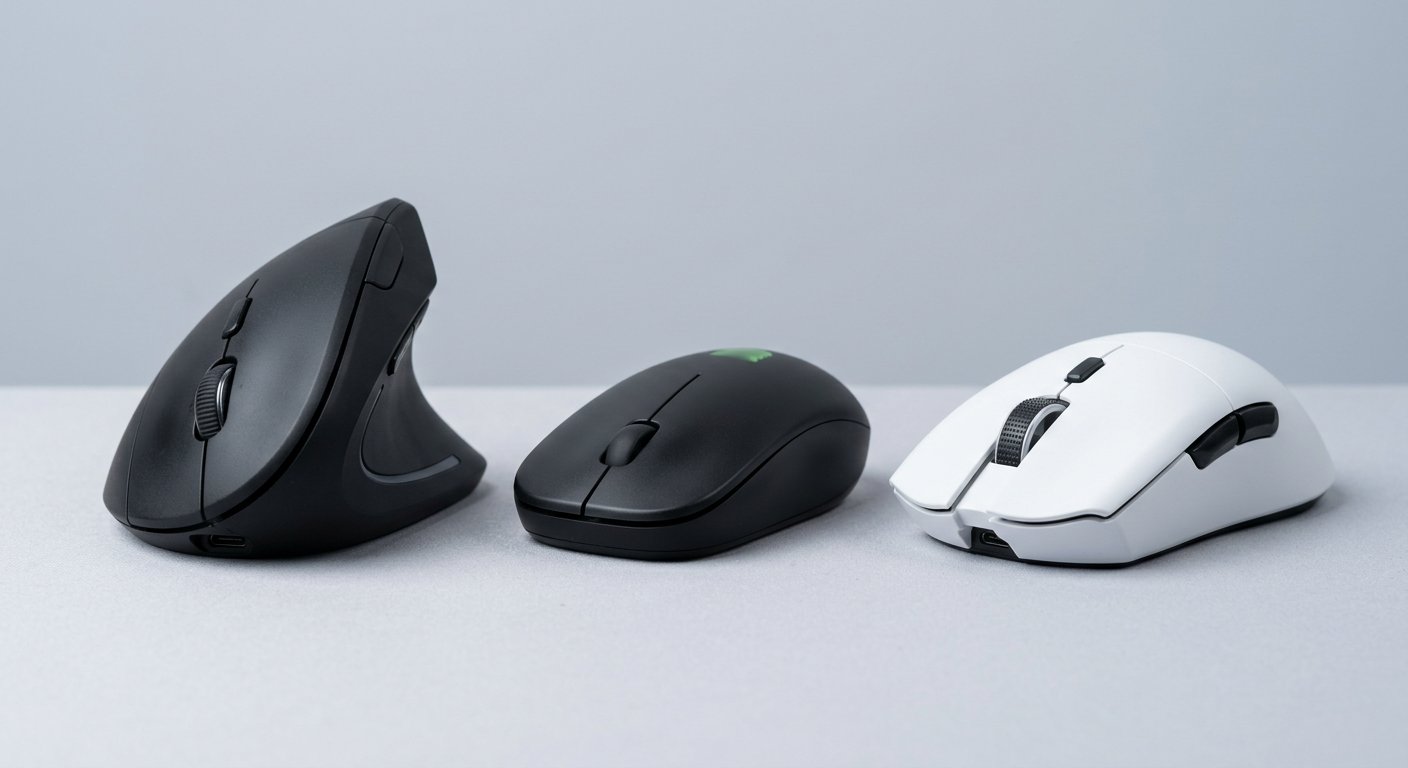
Logitech MX Master 4: Best Overall
For most designers, this is the default answer — no debate. The MagSpeed wheel scrolls a big canvas with one flick — 1,000 lines per second — and the thumb wheel handles the horizontal scroll Lightroom users always say they need. Seven programmable buttons plus the thumb wheel, 8,000 DPI tracking on glass, the haptics new on the 4, and three-device switching for Mac-plus-PC setups. Skip it if you have small hands (Anywhere 3S is the compact version) or you’d never map a button — the $34 M650 covers 80% of basic work. Our best office mouse for work guide has the full breakdown — at heart, that’s this mouse with a design workflow bolted on.
Razer Pro Click V2: Best for Button Customization
The pick for people who want more than four buttons. Eight programmable ones, a shape designed with Humanscale (the ergonomics company, not a gaming lab), 30,000 DPI, dual-mode scrolling, a 380-hour battery. Synapse is where the mapping gets deep, per-app profiles included. Skip it if you want the MX’s free-spin MagSpeed feel — good wheel, just not the same machine.
Logitech G502 X: Best for Shortcut-Heavy Retouchers
This is the mouse that shows up in retoucher threads, and there’s a reason. Eleven programmable buttons, a tilt wheel (two more), a hardware DPI-shift button, and on-board profiles that work without software. It’s the mouse for photoshop retouchers keep buying: the typical profile puts zoom, undo, space-pan, brush size, and DPI shift under the thumb. It’s heavier and more aggressive than a productivity mouse — skip it if you’d never map a button.
Logitech Lift: Best for All-Day Comfort
If your wrist is starting to speak up after 8-hour color sessions, this is the pick. The 57° vertical shape puts your hand in a handshake position, the clicks are quiet, and it comes in left- and right-hand versions. Scroll and two side buttons are standard — a comfort mouse, not a shortcut mouse. Skip it if you have no wrist fatigue — there’s nothing to gain.
Worth Knowing
Three more, one line each. The Razer Naga V2 Pro if you want a 12-button thumb grid for a shortcut-heavy Photoshop. The Logitech M650 (~$34) as the honest budget answer — two side buttons, silent click, enough for a lot of editing. And if you want zero arm movement at all, a thumb trackball: the MX Ergo S or the Elecom EX-G. The Apple Magic Mouse earns an honorable mention from the gesture camp — 2D scroll, natural zoom — caveat: it’s flat.
The Pro Setup: Mapped Buttons + DPI Shift
Here’s the part review sites skip — it isn’t in the spec sheet. We asked our Gadgetping readers — designers and photo editors — what they map, and the top five came back the same: zoom in, zoom out, undo, brush size up and down, DPI shift.
That last one is the trick: in Photoshop, a DPI shift that drops the sensor to low speed makes the mouse a fine instrument — precise selections, careful brushing, no bouncing cursor. A Roccat user on r/Lightroom describes exactly this setup: "one DPI for normal sensitivity, and one far slower for when I’m mostly dragging sliders around."
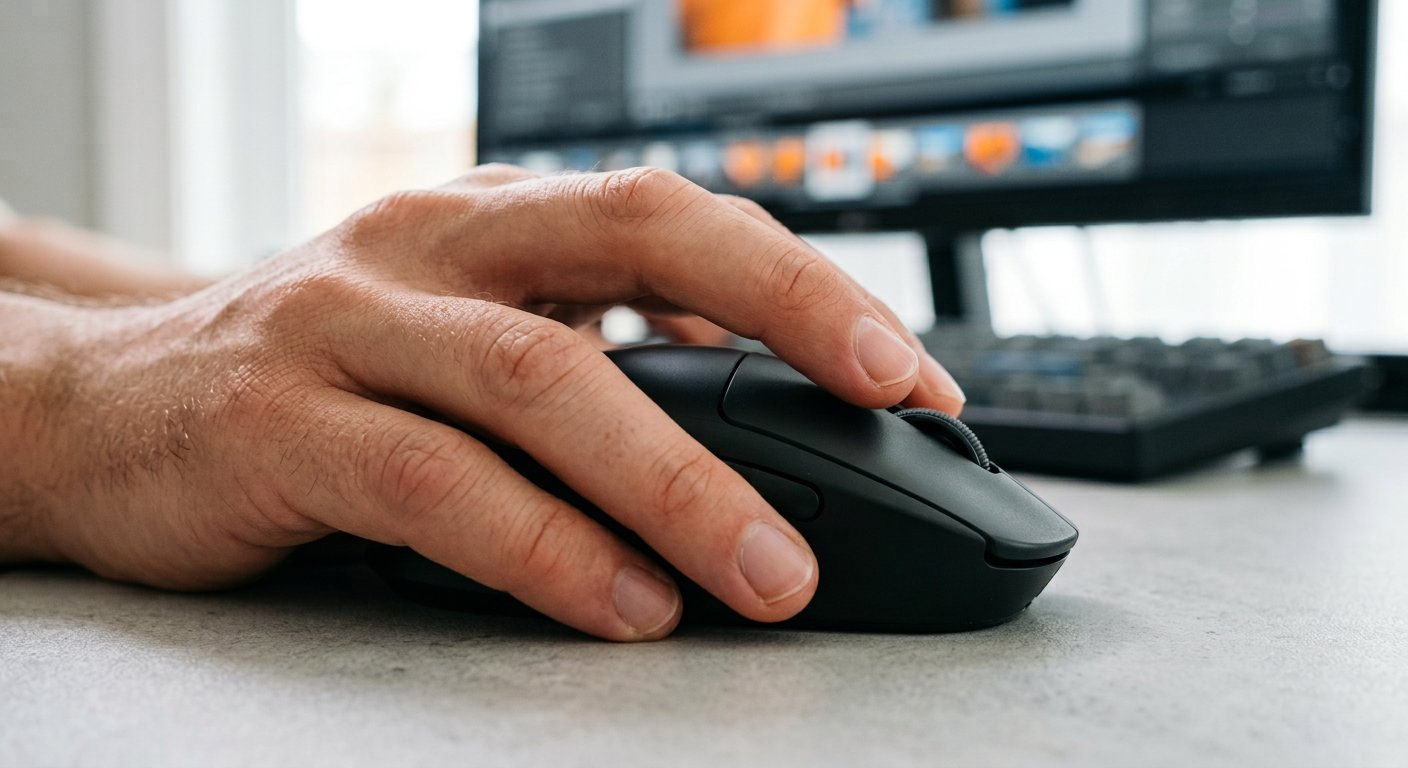
Then per-app profiles: the G502 and the Razer keep a Photoshop profile on the mouse itself, so a client’s laptop gets the same thumb layout as home. One retoucher in the MMO Mouse for Photoshop & Lightroom thread runs "ALT, CTL, and SHIFT keys bound to the mouse buttons" — that’s the difference between a mouse and a tool. What the DPI number actually does, explained in the mouse DPI explained guide.
Mouse, Trackpad, or Tablet?
The 2026 answer: it depends on the job — the threads are split into three camps.
The trackpad camp wins sliders: "Try adjusting a slider +/- 1 on a mouse. On the trackpad I just roll my finger slightly" — plus natural zoom gestures. The mouse camp wins panning and horizontal scroll — faster in big Lightroom grids, and "the thumb scroll on the MX does a good job of adjusting sliders." The tablet camp owns the brush: that pro photographer runs a Wacom for "dodging/burning… a great relief from carpal issues a mouse can inflict," and keeps the mouse for the sliders. The full three-way is arguing itself out in the trackpad vs mouse for Lightroom thread.
Most working designers run both — mouse for navigation, tablet for the brush. If wired vs wireless is still open, our wired vs wireless mouse comparison settles it.
Frequently Asked Questions
What is the best mouse for graphic design overall?
For most designers: the Logitech MX Master 4 (~$120) — MagSpeed scroll, seven buttons plus a thumb wheel, glass tracking. Retouchers who live in shortcuts: the G502 X or the Razer Naga. Long days with wrist fatigue: the Lift. The best mouse for photo editing is really whichever matches your workflow, and those three cover most of them.
What DPI do I need for design work?
Less than you think. Between 800 and 8,000 covers everything a design app asks for — and the real trick runs the other way: a DPI-shift button that drops to low speed for fine work. A faster sensor won’t save a wobbly hand; a slower mode will.
Do I need a drawing tablet if I have a good mouse?
For brushwork, retouching, and dodging/burning — yes. A tablet or pen display is the pro tool, and most working designers use both. For layout, color work, sliders, and navigation, a good mouse is enough. If your day is mostly clicking, panning, and adjusting, the mouse is the main tool; the tablet is the specialist.
Is a gaming mouse good for graphic design?
Yes, when you map the buttons. The G502 X (11 buttons plus a tilt wheel) and the Razer Naga (12-button thumb grid) are regulars in design threads for exactly that: zoom, undo, brush size, DPI shift under your thumb. Trade-off: gaming shells favor claw grip, so try one first.
Trackpad or mouse for Lightroom?
Both camps are real. Trackpad: finger-roll precision for ±1 sliders and natural zoom. Mouse: thumb-wheel horizontal scroll and faster panning in big grids. Honest answer: most pros keep a trackpad for fine slider work and a mouse for everything else.
So the map for the best mouse for graphic design: default, MX Master 4. Shortcut-heavy retouching, G502 X or Naga. All-day comfort, Lift. Tight budget, M650.
Over at Gadgetping we test gadgets from Amazon, AliExpress and Flipkart so you buy the right one — not the loudest one. Same standard: real workflows, real prices, no pretending the DPI number is the story.
Whatever you pick, spend ten minutes mapping buttons first. The mouse that looked like a compromise on paper becomes the tool you didn’t know you needed once the shortcuts live where your thumb does.




One thought on “Best Mouse for Graphic Design & Photo Editing (2026)”
Comments are closed.