

The Logitech MX Master 4 review almost answers itself: it’s the best work mouse you can buy in 2026, earning that by fixing the things owners complained about on the 3S. But it’s not a clean yes for everyone. The 152g weight, the new slicker surface, and the fact that it has no onboard memory decide whether this is your mouse — and we’ve spent weeks with it across spreadsheets, photos, and CAD at Gadgetping. Quick verdict first, then the detail that matters.
- Logitech MX Master 4 Review: The Quick Verdict
- What’s New vs the MX Master 3S
- Design & Comfort — The Weight and Slickness Debate
- The Wheel, the Ring, and the Haptics
- Logi Options+ and the Onboard Memory Problem
- Is the MX Master 4 Good for Gaming?
- MX Master 4 vs 3S — Should You Upgrade?
- Who Should Buy It (and Who Shouldn’t)
- Frequently Asked Questions
Logitech MX Master 4 Review: The Quick Verdict
The MX Master 4 is the most capable productivity mouse on the market. If you live in spreadsheets, design software, or multi-app workflows, the haptics, the Action Ring, the faster wheel, and the longer warranty genuinely move the needle. I’d give it a strong 4.5/5, docked only for the caveats below.
What’s great:
- Comfort unchanged from the 3S — the best grip Logitech has shipped
- MagSpeed wheel, now better; 70-day battery; quiet clicks
- 8 buttons + a configurable Action Ring for macros and gestures
- Easier to repair than most, with a 2-year warranty
What’s honest-but-annoying:
- It’s heavy at 152g — fine for desk work, wrong for a light-mouse fan
- The new surface is slicker than the 3S rubber (a real preference debate)
- The haptics only work in apps that support them (a few do, most don’t)
- No onboard memory — profiles vanish where you can’t install software
- Right-handed only
What’s New vs the MX Master 3S
The Master 4 isn’t a ground-up redesign — it’s a careful upgrade of a mouse people already loved:
| Feature | MX Master 3S | MX Master 4 |
|---|---|---|
| Haptics | None | 4 intensity levels, app-aware |
| Gesture button | Standard | Action Ring + configurable gestures |
| Wheel | MagSpeed | MagSpeed (same brilliant scroll) |
| Material | Rubber (grippy, took oil/stains) | Harder-wearing, more resistant |
| Skates/feet | Standard PTFE | Widened PTFE feet |
| Wireless | Logi Bolt (single radio) | USB-C Bolt receiver (2× radio) |
| Warranty | 1 year | 2 years |
Unchanged underneath: the 8,000 DPI sensor, the 70-day battery, the core shape, and three-device Flow switching. If you have a 3S that still feels great, the 4 isn’t a must-buy. The 3S stays a strong pick in our best office mouse roundup.
Design & Comfort — The Weight and Slickness Debate
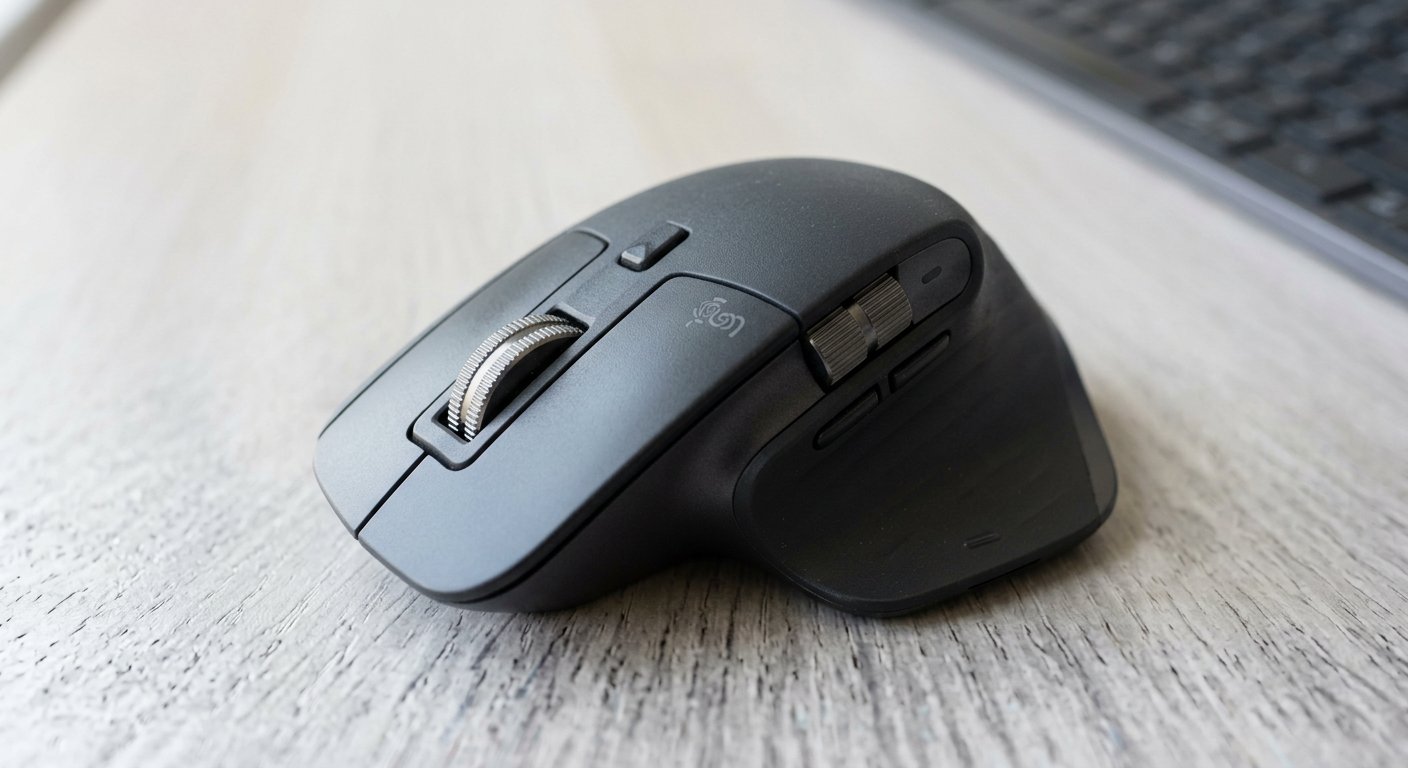
At 152g and right-handed only, the Master 4 is unapologetically a desk mouse. That’s fine for most work; wrong if you want something light and ambidextrous. The real talking point is the surface.
The 3S used grippy rubber some loved and others found got shiny and stained. The 4 swaps to a harder, slicker finish that resists oil and marks — but that means it’s less "grippy" out of the box. Owners split down the middle: one called the slickness something to get used to, another said the new material is clear step up because the 3S rubber wore down. Our read: slickness is a preference, not a defect. Handle it before you commit.
The 152g is more objective. For long, precise design and CAD sessions that heft feels stable; for anyone who wants a light, flickable mouse it’s a dealbreaker. Our best mouse for graphic design guide has lighter alternatives.
The Wheel, the Ring, and the Haptics
Three things define the Master 4’s feel, and they’re a mixed bag.
The MagSpeed wheel is still the best scroll wheel in the business — up to 1,000 lines per second in free-spin, flipping between ratchet and free-spin automatically. That crown is safe. The thumb wheel is the weak point: it misses the MagSpeed treatment and can feel scratchy.
The Action Ring adds a configurable gesture layer — scroll, zoom, or page-swap on a single press. A nice power-user trick.
The haptics are the headline. Four intensity levels give tactile feedback as you scroll a spreadsheet or timeline, and a 10-minute charge buys ~3 hours of use. The catch: haptics only fire in apps that support them. Photoshop and Excel-like workflows work well; most other apps don’t. One owner said the haptics made spreadsheet columns a two-scroll job instead of five — the best case. In unsupported apps it does nothing. Innovative, useful in the right software, and limited.
Logi Options+ and the Onboard Memory Problem
Logi Options+ is where the Master 4 lives, and for most people it’s excellent — per-app profiles, custom mapping, and Flow (control up to three computers) all work well.
But resource complaints are real. Owners on r/logitech flag Options+ as a memory-and-CPU hog while they click through a spreadsheet. That alone wouldn’t sink it — the real problem is bigger.
The No-Onboard-Memory catch. The Master 4 stores nothing on the device. Your profiles and button maps live entirely in Options+. On a personal machine that’s great. On a corporate laptop where you can’t install software — a very common reality — the mouse falls back to defaults, and every gesture you configured disappears. Even Logitech’s own G502 X has onboard memory. It’s the biggest reason someone sends the Master 4 back, as the r/logitech "worth it for a desk job" thread’s top-voted comment (1,991 upvotes) made clear.
Is the MX Master 4 Good for Gaming?
No — and that’s fine. A 125Hz polling rate and 152g body mean it’s not a competitive or FPS tool, full stop. Put a light gaming mouse in the drawer too.
For slow, casual games it’s totally fine — a round of Baldur’s Gate 3 or Stardew Valley feels great. The r/MouseReview crowd is blunt about the polling-rate ceiling for serious play, but for anything relaxed it’s a non-issue.
MX Master 4 vs 3S — Should You Upgrade?
The real-world math: the Master 4 runs about $119.99 on street, while the 3S is now $85–109 (open-box $55–65), so the gap is roughly $15–35 in practice.
| Your workflow | Which mouse |
|---|---|
| Heavy spreadsheets, apps that support haptics | Master 4 |
| Code / design, multi-app work, want the Action Ring | Master 4 |
| Browse, email, light office, don’t need haptics | 3S (save the money) |
| Already own a 3S that feels good | Keep it |
Owner sentiment splits the same way. One "sent the 4 back and bought a 3S for half the price"; another countered that the 3S rubber gets oily. Both are right — the answer comes down to your apps and your hands.
Who Should Buy It (and Who Shouldn’t)
Buy it if you’re a spreadsheet/design/CAD power user, you work across multiple devices, and your apps support haptics. Long-term reviewers report no drift or double-click issues.
Skip it if you’re left-handed (see our best left-handed mouse guide), you want a light mouse, you’re on a tight budget, or you’re forced onto a corporate machine where you can’t install Options+.
Frequently Asked Questions
Is the Logitech MX Master 4 worth it?
For spreadsheet, design, and CAD power users: yes, it’s the best work mouse you can buy. For light users or anyone who can’t install Logi Options+, the value drops.
Should I upgrade from the MX Master 3S to the MX Master 4?
Only if you use apps that support haptics, or you want the Action Ring and the longer 2-year warranty. The 3S is still excellent and now cheaper. If your 3S feels good, keep it.
Is the MX Master 4 slippery?
It’s sleeker than the grippy rubber on the 3S, deliberately, so it resists oil and stains. Some owners find it less gripped; others prefer it. Preference, not a flaw.
Is the MX Master 4 good for gaming?
For slow, casual games, yes. For FPS or competitive play, no — 125Hz polling and 152g make it the wrong tool.
Does the MX Master 4 have onboard memory?
No. All profiles and gestures are stored in Logi Options+, so on machines where you can’t install the software, the mouse falls back to defaults. That’s its biggest limitation for corporate users.
So the straight answer: the Logitech MX Master 4 is the best work mouse money can buy, and if your apps use haptics it’s a genuine upgrade over the 3S. But the weight, the slicker surface, the app-dependent haptics, and — most of all — the lack of onboard memory mean it’s only a slam-dunk for power users who can install the software. Buy it if you’re a spreadsheet or design pro.
Over at Gadgetping we test gadgets from Amazon, AliExpress and Flipkart so you buy the right one — not the loudest one. For the full sensor-and-DPI breakdown, see our computer mouse buying guide, and for lighter or left-handed alternatives, our office mouse picks.