
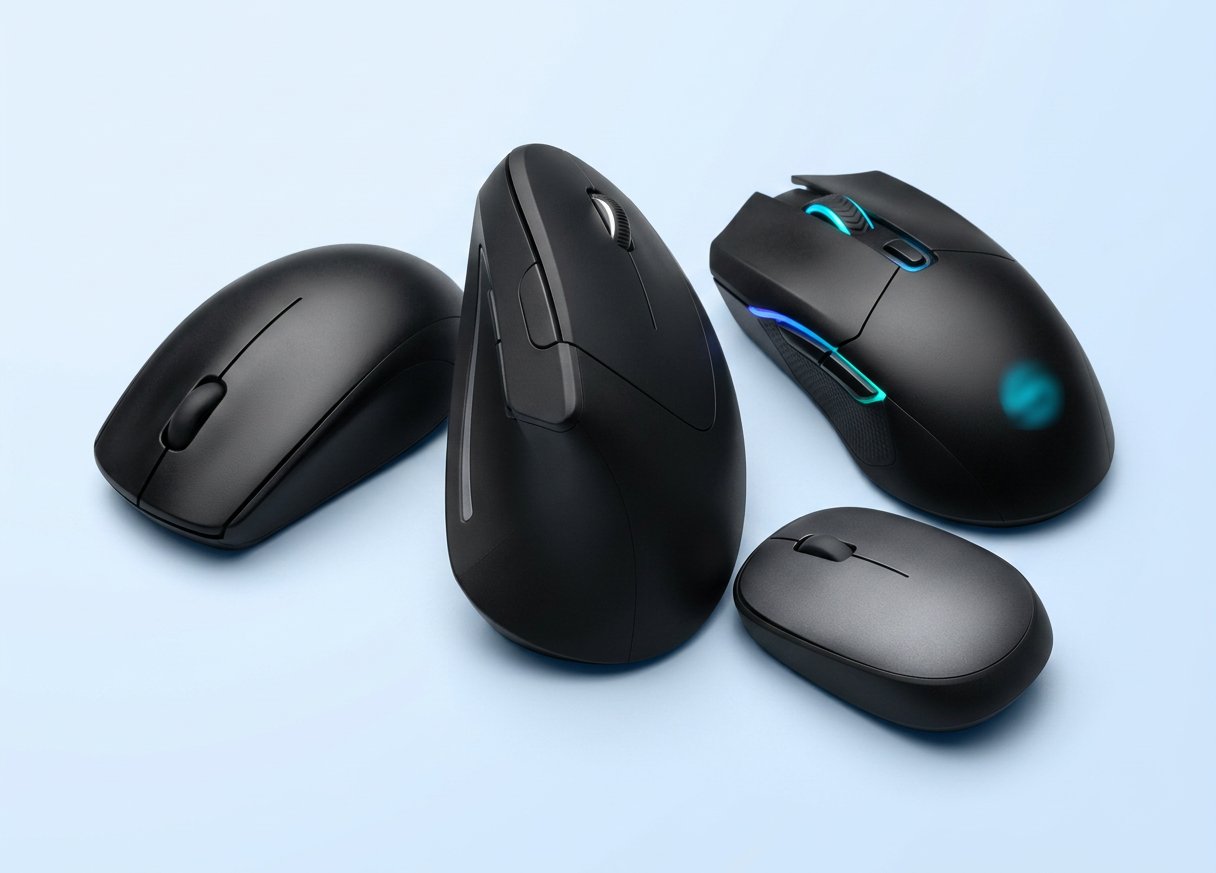
You’ll click your computer mouse around 7,000 times today. Maybe 10,000. So why did you spend more time picking your phone case?
I’ve tested more computer mouse models than I can count over at Gadgetping, and most people are using the wrong one — not because they don’t care, but because nobody told them what actually matters. The best computer mouse isn’t the one with the biggest specs sheet. It’s the one that fits your hand, matches your work, and doesn’t make you pay for features you’ll never touch.
This computer mouse buying guide cuts the noise. We’ll cover the computer mouse types you’ll actually see, the specs that matter (and the ones that don’t), and how to choose a computer mouse without falling for marketing fluff. No jargon. No hype. Just honest answers — because your computer mouse deserves more thought than you’ve probably given it.
Computer Mouse Types You’ll See in 2026
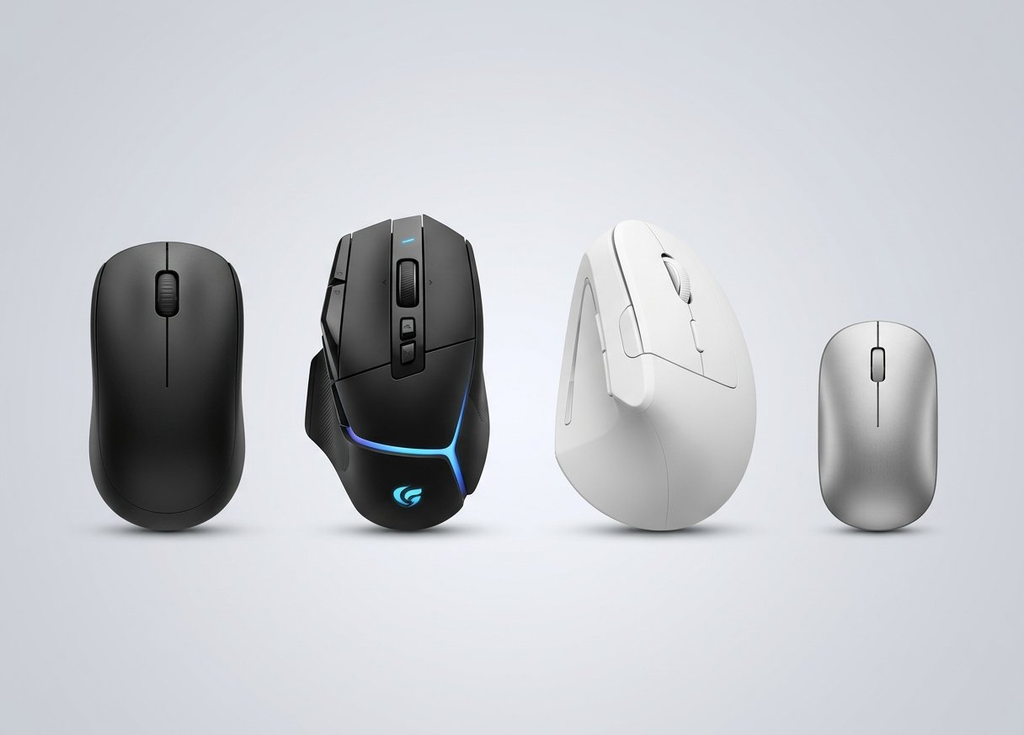
Let’s start with the computer mouse types you’ll come across. Each one is built for a different kind of user. Pick the type first, then worry about specs.
Standard / Everyday Mouse
A standard computer mouse does the job for most people. Two buttons, a scroll wheel, plug in your computer mouse and go. Nothing fancy, nothing missing. If you browse the web, check email, and write the occasional document, this computer mouse is all you need. It’s also the cheapest computer mouse option on the shelf.
Gaming Mouse
A gaming computer mouse is built for speed and precision. Think fast sensors, extra buttons, and a lightweight computer mouse body. FPS players (Valorant, CS2) want something light and quick. MMO players (World of Warcraft) want lots of programmable buttons for macros. Casual gamers just need an accurate computer mouse that won’t lag. If you’re gaming on a budget, check out our Top Budget Gaming Mice Under $40 — we tested seven computer mouse picks so you don’t have to guess.
Wireless Mouse
A wireless computer mouse cuts the cord. No cable clutter, more desk freedom, easy to pack your computer mouse for travel. Most modern wireless computer mouse models are just as fast as wired ones — the lag gap basically doesn’t exist anymore for your computer mouse. For a no-frills everyday computer mouse option, we reviewed the Amazon Basics Wireless Computer Mouse — it’s not fancy, but at under $10 this computer mouse gets the job done.
Ergonomic / Vertical Mouse
An ergonomic computer mouse is shaped to support your hand in a natural position. A vertical computer mouse takes it further — it turns your hand sideways into a “handshake” position. Vertical computer mouse benefits include less wrist strain, better posture, and reduced pressure on your median nerve. You don’t need to wait for pain to start. This computer mouse type is great for anyone who clicks more than a few hours a day.
Trackball Mouse
A trackball computer mouse stays still on your desk. Instead of moving the whole computer mouse, you roll a ball with your thumb or fingers. It takes a day or two to get used to this computer mouse style, but it saves desk space and reduces arm movement. Great for small desks and people who want precision without repositioning their computer mouse constantly.
Travel / Portable Mouse
A travel computer mouse is small, flat, and light. It fits in a laptop bag and your computer mouse usually connects via Bluetooth so you don’t lose a USB dongle. Battery life matters here — you want a computer mouse that lasts weeks, not days. If you work from coffee shops or travel for business, this is your computer mouse category.
Silent / Quiet-Click Mouse
A silent click computer mouse drops the click noise by up to 90%. Same computer mouse function, way less sound. If you work in a shared office, take calls from home, or record videos, a silent computer mouse keeps the peace. The difference is surprising — once you try a silent computer mouse, loud clicks feel obnoxious.
Productivity / Office Mouse
A productivity computer mouse is designed for long work sessions. Think comfortable computer mouse shape, programmable buttons for shortcuts, smooth scroll wheels, and multi-device switching. It’s the sweet spot between a basic computer mouse and a gaming computer mouse — built for getting work done, not for fragging.
Key Specs Explained
Specs on a computer mouse can feel overwhelming, but most computer mouse specs come down to one question: does this matter for what I do with my computer mouse? Let’s break your computer mouse specs down honestly.
Sensor Type — Optical vs Laser
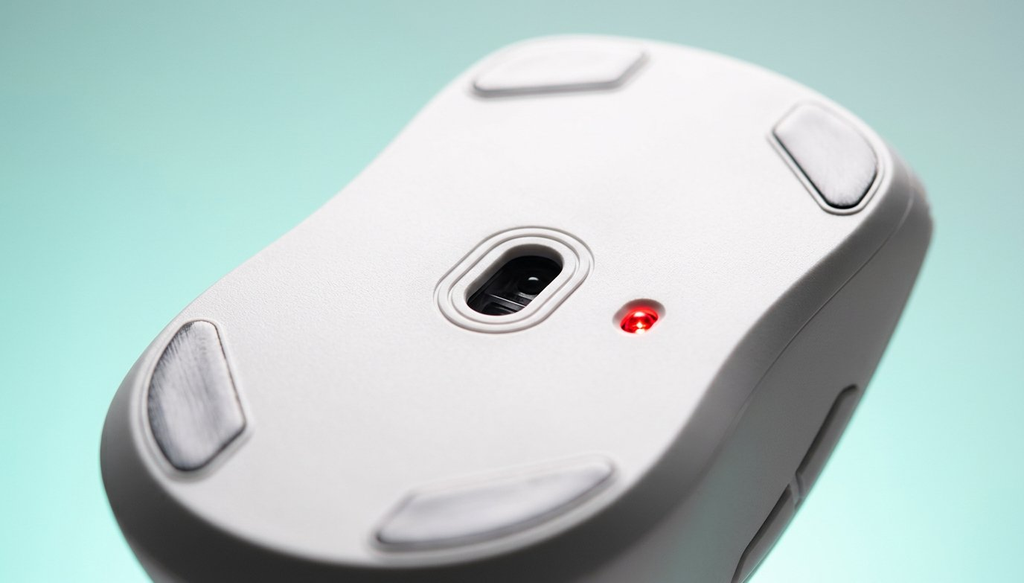
Optical vs laser — which is better for your computer mouse? For most people, an optical computer mouse is the way to go. An optical computer mouse sensor uses an LED light and tracks really well on mouse pads and matte desks. A laser computer mouse sensor works on more surfaces (including glass), but can feel a bit jittery on some materials. Almost every good gaming and office computer mouse made today uses optical. A laser computer mouse is mostly useful if you work on glossy surfaces without a mouse pad.
DPI (Sensitivity) — Do You Need High DPI?
Mouse DPI (dots per inch) measures how sensitive your computer mouse is. Higher DPI means the cursor moves farther with less hand movement. Here’s the truth: for browsing and office work, 800–1600 DPI is plenty. For gaming on a 4K monitor, higher adjustable DPI helps. But anything above ~6400 DPI is marketing fluff for 99% of people. An extremely high DPI just makes your computer mouse cursor twitchy and hard to control. Adjustable DPI matters more than a high peak number.
Polling Rate (Hz) — Does It Matter?
Mouse polling rate (measured in Hz) is how often your computer mouse tells the computer where it is. A standard computer mouse reports at 125Hz. Gaming mice typically run at 1000Hz (1ms response). Some high-end models hit 4000–8000Hz. For office work, browsing, and casual use, 1000Hz is more than enough — you won’t feel a difference beyond that. Competitive FPS players might benefit from higher polling rates, but for everyone else, it’s not worth paying extra for your computer mouse.
Weight — Light vs Heavy
Computer mouse weight matters more than people think. Here’s the quick breakdown:
| Weight | Category | Best For |
|---|---|---|
| Under 60g | Ultralight | Competitive FPS, fast flicks |
| 60–75g | Lightweight | All-around gaming (sweet spot) |
| 75–90g | Standard | Most users, office, casual gaming |
| 90g+ | Heavy | MMO mice with lots of buttons, productivity |
Light mice reduce fatigue over long sessions. Heavy mice feel more stable for slow, precise movements. If you’re not sure, aim for the 70–85g range — it works for almost everyone.
Buttons & Programmability
How many buttons do you actually need on your computer mouse? Two buttons and a scroll wheel cover most people. Side buttons (back/forward) are useful for browsing and productivity. Gaming mice add 6–12+ programmable buttons for macros and shortcuts. Programmers and designers often benefit from a few programmable buttons for repeated actions. But if you just want to point and click, don’t pay for buttons you’ll never map on your computer mouse.
Scroll Wheel Types
Not all computer mouse scroll wheels are the same. A basic ratcheted wheel clicks step by step — precise but slow for long documents. A free-spin (frictionless) wheel spins freely for fast scrolling through huge pages. A tilt wheel scrolls left and right too — great for wide spreadsheets. Some premium mice use magnetic wheels (like Logitech’s MagSpeed) that switch between modes automatically. If you work with long documents or spreadsheets, the computer mouse scroll wheel matters more than you’d expect.
Click Switches (Mechanical vs Optical)
The switches under your computer mouse click buttons determine feel and lifespan. Mechanical switches are the standard — reliable, tactile, rated for 20–50 million clicks. Optical switches (used by Razer’s newer mice) use a light beam instead of physical contact — faster actuation, no double-click issues, rated for 70–100 million clicks. For most people the computer mouse switch difference is subtle, but optical switches last longer and avoid the dreaded double-click failure.
Battery Life (Rechargeable vs Replaceable)
If you go wireless, computer mouse battery type matters. Rechargeable mice (USB-C) are convenient — plug in overnight and you’re set. Look for at least 2 months per charge for productivity mice. Replaceable battery mice (AA/AAA) can last a year or more but you need to keep spare batteries around. Quick-charge is a nice feature — 10 minutes of charging can give you hours of use. If you forget to charge often, pick a computer mouse with replaceable batteries or a long-lasting rechargeable.
Shape, Fit & Comfort
Here’s where most computer mouse buyers mess up. They look at computer mouse specs and skip the most important thing: does this computer mouse actually fit your hand?
You wouldn’t buy shoes without checking the size. A computer mouse is the same — your computer mouse has to fit your hand, your grip, and your work. The difference is, you wear a computer mouse for 8 hours a day.
Hand Size Matters
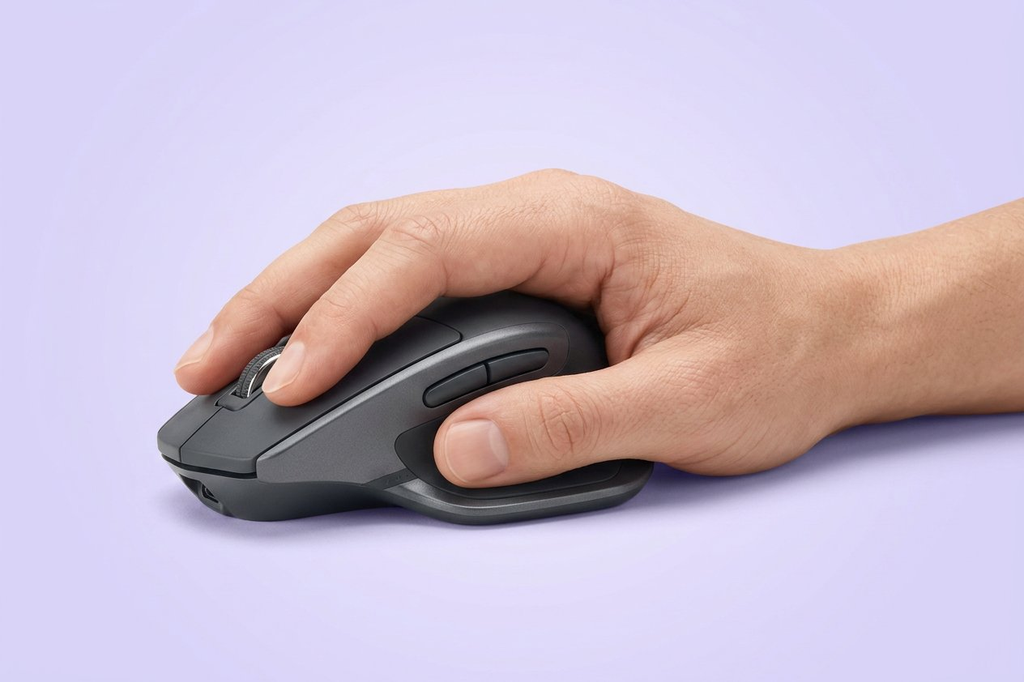
A computer mouse comes in different sizes for a reason. If you have smaller hands, a big computer mouse will force you to stretch and strain. If you have large hands, a small computer mouse will cramp your fingers. As a general guide:
- Under 17cm hand length → small computer mouse
- 17–19cm → medium computer mouse
- Over 19cm → large computer mouse
If you have smaller hands, check our best mouse for small hands guide — size really does matter more than specs when picking a computer mouse.
Grip Styles — Palm vs Claw vs Fingertip
Mouse grip styles change which computer mouse shape works for you:
- Palm grip: Your whole hand rests on the computer mouse. Most comfortable, least precise. Needs a larger, contoured mouse.
- Claw grip: Your palm rests at the back, fingers arch. Balance of comfort and speed. Works with medium-sized mice.
- Fingertip grip: Only your fingertips touch the computer mouse. Fastest, most precise, but tiring. Best with smaller, lighter mice.
Not sure which one you use? Look at your hand next time you’re using your computer mouse. That’ll tell you more than any spec sheet.
Left-Handed Users
Most mice are shaped for right hands. If you’re a lefty, you’ve got two options for your computer mouse: ambidextrous mice (symmetrical shape, works for both hands) or dedicated left-handed mice (rare but they exist). Our best mouse for left-handed users guide covers both computer mouse options.
Ergonomics & Wrist Health
If your wrist hurts after long sessions, don’t ignore it. An ergonomic computer mouse or vertical mouse can take pressure off your wrist and forearm. You don’t need to wait for pain — good computer mouse ergonomics prevent problems before they start. According to the Canadian Centre for Occupational Health and Safety, you should choose a mouse that fits your hand and keeps your wrist in a neutral position. Our best mouse for wrist pain guide has specific computer mouse picks for carpal tunnel and RSI.
Wired vs Wireless vs Bluetooth
The wired vs wireless computer mouse debate isn’t as simple as it used to be. Let’s settle it quickly.
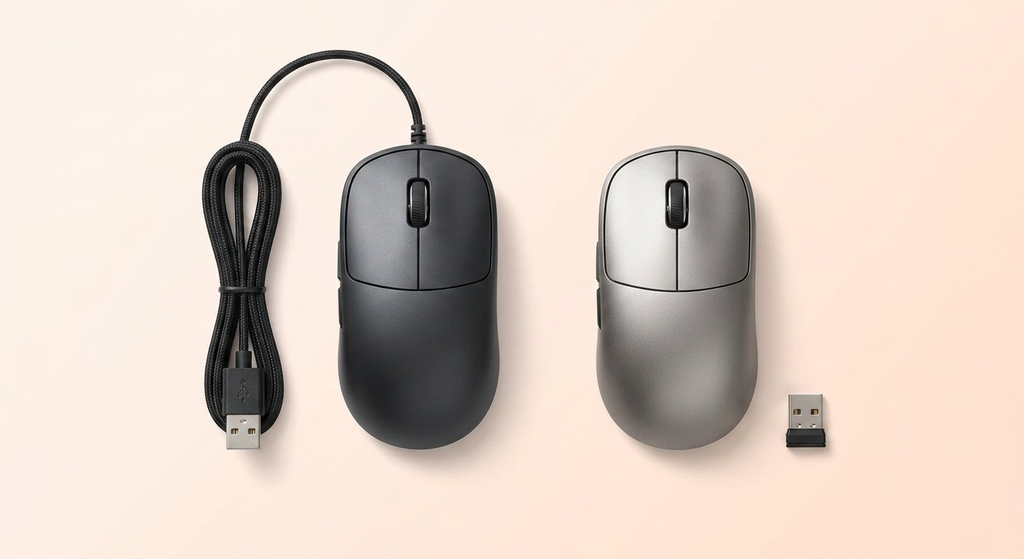
Wired Mouse (USB)
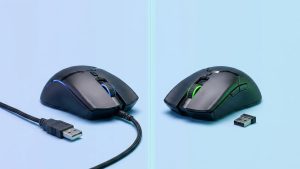
Plug it in, your computer mouse works. Zero lag, no battery to charge, no dongle to lose. A wired computer mouse is cheaper and simpler. The only downside is the cable — it can drag and clutter your desk. For competitive gaming and budget buyers, wired is still the safe computer mouse choice.
Wireless 2.4GHz (USB Dongle)
A 2.4GHz wireless computer mouse uses a small USB receiver. Modern 2.4GHz tech (like Logitech LIGHTSPEED and Razer HyperSpeed) matches wired latency — we’re talking within 0.2ms. You get cable-free freedom without giving up speed. The trade-off: your computer mouse uses a USB port, and the dongle is small enough to lose.
Bluetooth
A Bluetooth computer mouse connects without a dongle — great for laptops with limited ports and for switching between multiple devices. The downside is slightly higher latency than 2.4GHz. Fine for office work and browsing, not ideal for competitive gaming on your computer mouse.
We broke down the wired vs wireless mouse debate in detail here — but the short version is below.
| Feature | Wired | Wireless 2.4GHz | Bluetooth |
|---|---|---|---|
| Latency | Lowest | Near-wired | Slightly higher |
| Battery | None needed | Yes | Yes |
| Port used | USB | USB (dongle) | None |
| Multi-device | No | Some models | Yes |
| Best for | Competitive gaming, budget | Gaming, office | Travel, multi-device |
Bluetooth vs 2.4GHz — the short answer for your computer mouse: 2.4GHz for gaming, Bluetooth for travel and multi-device setups.
Who Should Buy What
You’ve seen the computer mouse types and the specs. Now let’s match them to real people.

Office & Productivity Workers
You want comfort, battery life, and maybe a couple of programmable buttons for shortcuts on your computer mouse. A contoured wireless computer mouse in the 70–90g range is ideal. Don’t overthink it — if it fits your hand and lasts weeks on a charge, you’re set. Our best mouse for office guide has specific computer mouse picks.
Gamers (By Game Type)
FPS players: go light (under 75g), accurate sensor, low latency computer mouse. MMO/MOBA players: more buttons, comfortable for long sessions. Casual gamers: anything from a reputable brand with a decent sensor in your computer mouse. Our gaming mouse guide breaks it down by budget and game type for your computer mouse.
Travelers & Laptop Users
Small, flat, wireless, long battery — that’s your travel computer mouse. Bluetooth is ideal here since laptops have limited ports. If you’re also choosing a laptop, our How to Choose the Right Laptop guide pairs well with this computer mouse guide.
Graphic Designers & Photo Editors
You need precision and smooth tracking from your computer mouse. An adjustable DPI computer mouse with a good optical sensor and a smooth scroll wheel makes editing much more comfortable. Our best mouse for graphic design guide covers the computer mouse features that matter for creative work.
Programmers & Coders
You spend long hours clicking and scrolling on your computer mouse. Comfort is priority one. A few programmable buttons for running builds or switching tabs can save a lot of repeated actions on your computer mouse. Our best mouse for programmers guide looks at comfort and custom buttons.
People with Wrist Pain or RSI
Don’t push through it. An ergonomic computer mouse or vertical mouse can reduce strain immediately. Trackball mice also help since they eliminate arm movement. Our best mouse for wrist pain guide has specific computer mouse picks for carpal tunnel and RSI.
Shared / Quiet Office Spaces
A silent click computer mouse keeps everyone sane. Pair it with a comfortable shape and you’re golden. Our best silent mouse guide has computer mouse picks for shared spaces.
If you’re setting up a full home office, our Top 10 Amazon Basics Accessories guide includes a solid keyboard-and-computer mouse combo worth checking out.
Budget Guide — How Much Should You Spend?
So how much should I spend on a computer mouse? Less than you think.
| Price Range | What You Get | What to Skip |
|---|---|---|
| $5–$30 | Basic wired or entry wireless computer mouse, 1000–1600 DPI, reliable | RGB, extra buttons, premium sensors |
| $30–$75 | Good sensors, ergonomic shapes, wireless options, some programmable buttons | Ultralight builds, 8000Hz polling |
| $75–$100 | Premium sensors, multi-device, fast scroll wheels, long battery | Overkill for basic office work |
| $100+ | Flagship features, ultralight, 8K polling, charging docks | Only worth it for competitive gaming or pro productivity |
The best budget computer mouse options under $30 cover most everyday needs. You don’t need to spend $100 to get a good computer mouse — you need to spend enough to get the features that matter for YOUR work.
Are expensive mice worth it? Only if your computer mouse needs specific features — high-end sensors for competitive gaming, ultralight builds, or multi-device support for complex workflows. For browsing and email, a $15 computer mouse is genuinely fine.
Common Mouse Buying Mistakes
I’ve made most of these computer mouse mistakes myself. Learn from my experience:
- Buying based on DPI alone. A 30,000 DPI computer mouse sounds impressive. It’s useless if the shape doesn’t fit your hand. I once bought a gaming computer mouse for office work because it had the highest DPI on the shelf. My wrist hated me within a week.
- Assuming “gaming” = better for everything. A gaming computer mouse is often heavier, louder, and more cluttered with buttons than you need for office work.
- Ignoring hand size and grip. The best sensor in the world can’t fix a computer mouse that’s too big or too small for your hand.
- Overpaying for features you won’t use. 8000Hz polling, 30K DPI, 12 side buttons — if you’re not a competitive gamer, you’re paying for numbers you’ll never feel on your computer mouse.
- Ignoring battery type. Rechargeable or replaceable? Pick your computer mouse battery based on your habits, not what looks premium.
- Skipping ergonomics until pain starts. Don’t wait. A comfortable computer mouse is cheaper than a wrist brace.
Frequently Asked Questions
What is DPI and do I need high DPI on my computer mouse?
DPI measures computer mouse sensitivity. For most people, 800–1600 DPI is plenty. High DPI (above 6400) is marketing hype — it makes your computer mouse cursor harder to control, not better. Adjustable DPI matters more than a high peak number.
Is optical or laser sensor better for a computer mouse?
Optical is better for most people. It tracks accurately on mouse pads and matte desks. Laser works on more surfaces (including glass) but can feel jittery. Almost all good computer mouse models today use optical sensors.
Wired or wireless computer mouse — which is better?
For most people in 2026, a wireless 2.4GHz computer mouse is just as good as wired. The latency gap is basically gone. Wired is cheaper and simpler. Pick wireless if you want freedom, wired if you want simplicity and zero battery management for your computer mouse.
Is Bluetooth good enough for gaming on a computer mouse?
For casual gaming, yes. For competitive FPS, no — a Bluetooth computer mouse has more latency than 2.4GHz wireless. Use 2.4GHz (with a dongle) for gaming, Bluetooth for travel and multi-device setups on your computer mouse.
What is polling rate and does it matter for a computer mouse?
Polling rate is how often your computer mouse reports its position to your computer. 1000Hz (1ms) is the standard for gaming and is more than enough for everyone except top-level competitive players. Higher rates (4000–8000Hz) exist but aren’t noticeable for most computer mouse users.
How do I know if a computer mouse fits my hand?
Measure your hand from the tip of your middle finger to your wrist crease. Under 17cm = small, 17–19cm = medium, over 19cm = large. Match your computer mouse size to your hand size. If you have small hands, check our best mouse for small hands guide.
What are the main computer mouse grip styles?
Palm grip (whole hand rests on computer mouse — comfortable, needs larger mouse), claw grip (fingers arched — balanced, medium mouse), and fingertip grip (only fingertips touch — fast, small light mouse). Watch how you naturally hold your computer mouse to find yours.
Can an ergonomic computer mouse help with wrist pain?
Yes. An ergonomic computer mouse or vertical mouse reduces wrist strain by putting your hand in a more natural position. Trackball mice also help by eliminating arm movement. Don’t wait for pain to start — good computer mouse ergonomics prevent problems.
How much should I spend on a computer mouse?
For basic use, $15–$30 gets you a perfectly good computer mouse. For gaming or productivity, $30–$75 is the sweet spot. Only spend $100+ if your computer mouse needs specific high-end features.
Are expensive computer mice worth it?
Only if your computer mouse needs what they offer — competitive-grade sensors, ultralight builds, multi-device switching, or premium ergonomics. For everyday use, a mid-range computer mouse is genuinely just as good.
Are wireless computer mice good for gaming in 2026?
Yes. Modern 2.4GHz wireless computer mouse tech (Logitech LIGHTSPEED, Razer HyperSpeed) matches wired latency. Most pro gamers now use a wireless computer mouse. Bluetooth is the only wireless type that still has noticeable lag for competitive play.
Is there one best computer mouse for everyone?
No. The best computer mouse depends on your hand size, grip style, and what you do with it. A great gaming computer mouse is a bad office computer mouse and vice versa. That’s why this guide matches a computer mouse to people, not to spec sheets.
Wrapping Up
Here’s the one thing to remember: the best computer mouse for you is the one that fits your hand, matches your work, and doesn’t make you pay for specs you’ll never use. Not the one with the highest DPI. Not the one with the most buttons. Not the one your friend uses.
That’s the whole point of this computer mouse buying guide — cut the noise, find your fit.
Gadgetping reviews gadgets honestly — the good and the bad — so you know exactly what you’re buying. Browse our computer reviews for more, and keep an eye out as we add new computer mouse guides to this series.
Your wrist will thank you.