
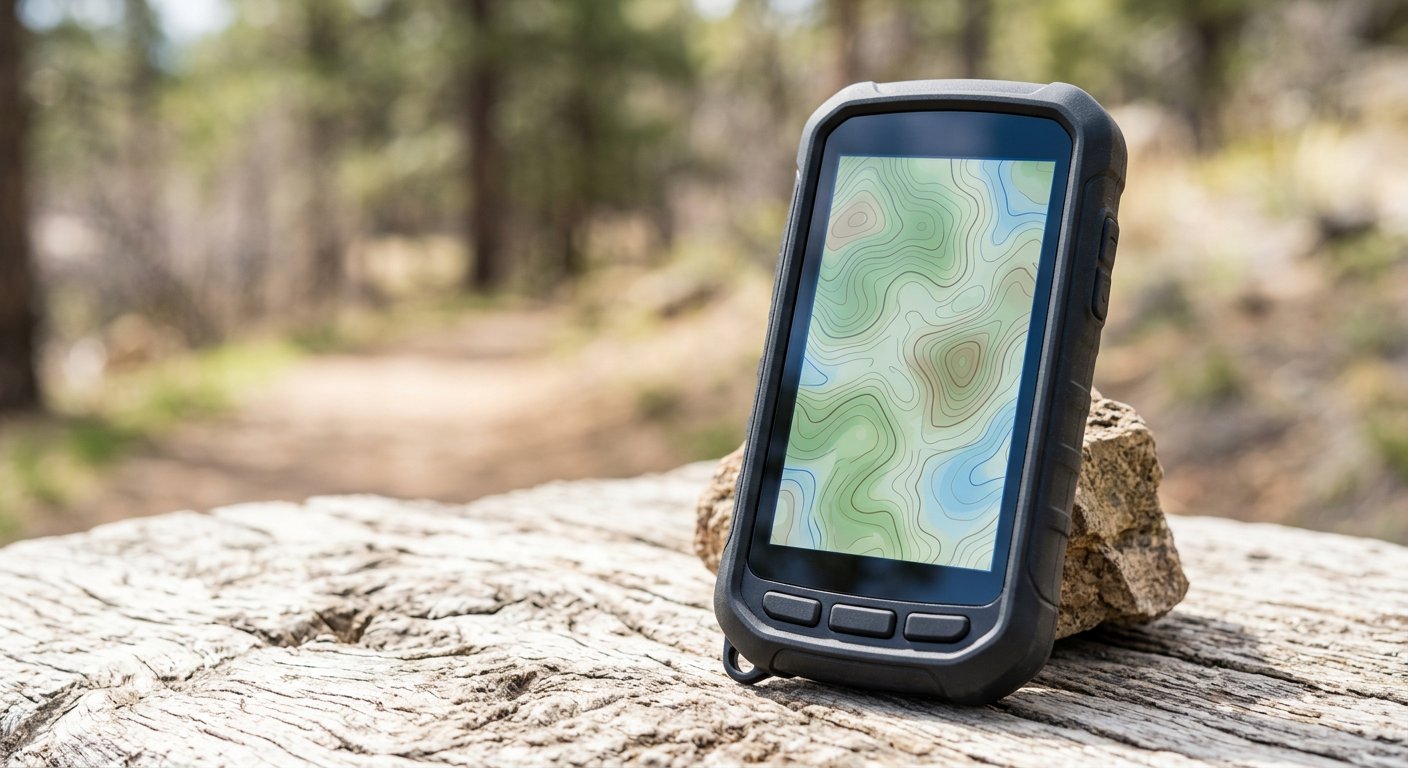
The Garmin Montana 700i is one of the most capable handheld GPS units you can buy — a 5-inch glove-friendly touchscreen, MIL-STD-810 rugged build, and inReach satellite messaging so you can text and trigger SOS from the middle of nowhere. The old "user’s guide" on this page was mostly AI-generated padding (it even linked the "Start" button to a Windows 11 how-to, and used a photo of a phone in a car mount). So let’s do this properly. Here’s how the Start/Stop tracking really works on the Montana 700i, what each control does, and whether it’s still worth buying in 2026.
- Garmin Montana 700i Start/Stop Tracking: What You’re Really Getting
- How to Use inReach Tracking (live location to your contacts)
- How to Use Activity Recording (your own breadcrumb trail)
- Key Settings Worth Knowing
- Garmin Montana 700i Specs
- Is the Montana 700i Still Worth It in 2026?
- Frequently Asked Questions
Garmin Montana 700i Start/Stop Tracking: What You’re Really Getting
Here’s the key thing the old guide got wrong: there isn’t one "Start/Stop" button. The Montana 700i has two distinct, separately-controlled tracking features, and they do very different jobs.
| Control | Where to find it | What it actually does |
|---|---|---|
| inReach Tracking | inReach > Tracking > Start Tracking / Stop Tracking |
Records and transmits your live location over the Iridium satellite network, so contacts can follow you in real time on the Garmin Explore site or a MapShare page. |
| Activity Recording | Status page (swipe down from the top, or tap Power) > Activity Recording | Records the breadcrumb path you walk/ride on the device itself, and saves it as an "activity" (and optionally a GPX/FIT track). |
Both are on by default in separate ways, and stopping one can affect the other — so it’s worth understanding both before you head out.
How to Use inReach Tracking (live location to your contacts)
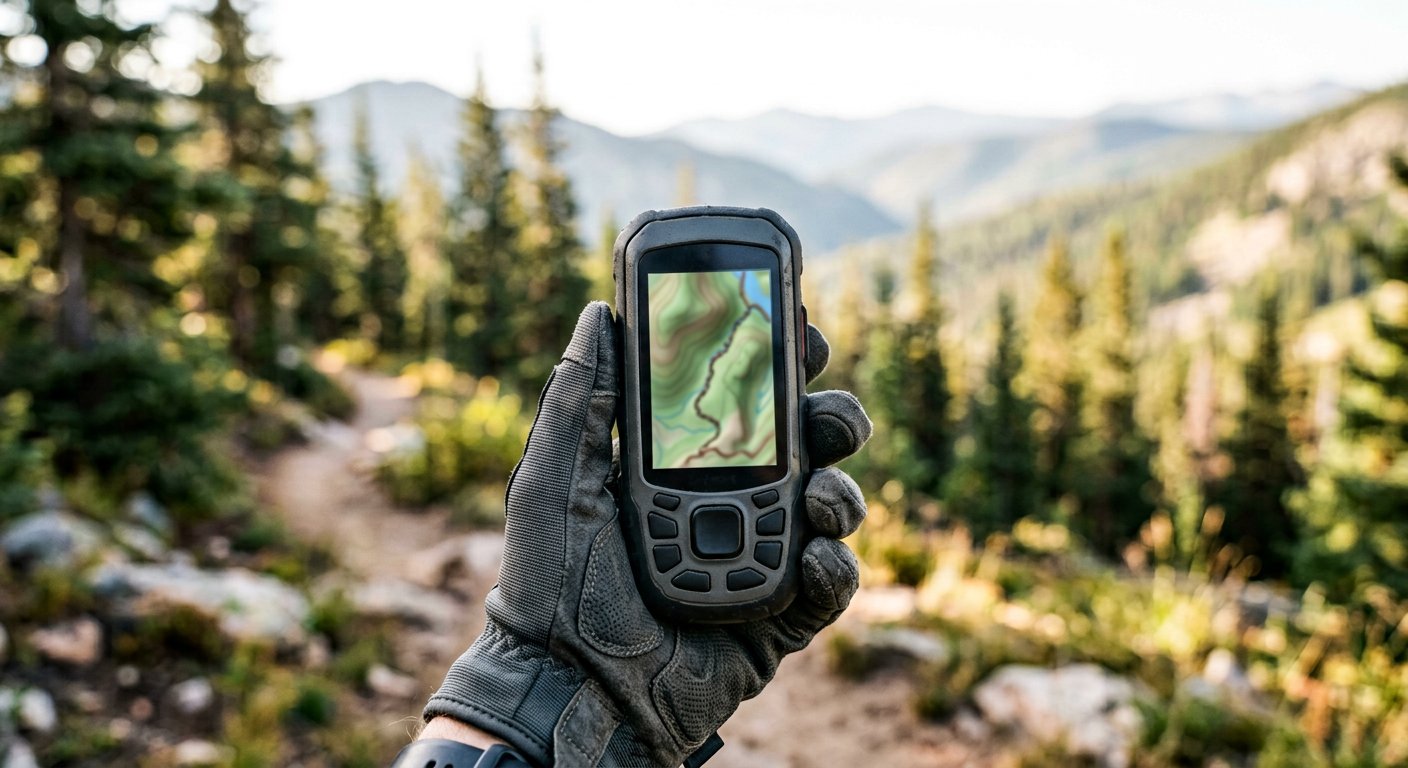
inReach Tracking is the "let people know where I am" feature. It sends your position to your contacts over satellite, which is why it’s the one that matters for safety and for letting someone follow your progress.
- Start: Select the menu, then
inReach > Tracking > Start Tracking. Starting tracking also starts recording your path as an activity. - Stop: Select
inReach > Tracking > Stop Tracking. Stopping also pauses your activity recording.
The point is that your track points show up on Garmin Explore and on your MapShare page, so a friend at home can watch your blue line move. You can also share the link directly: inReach > Tracking > Send MapShare > OK, then pick a recipient and send an email or text.
"The default configuration of Garmin outdoor handhelds, including the Montana 700i, is to automatically start recording your activity when the unit is turned on." — Garmin community forums
How to Use Activity Recording (your own breadcrumb trail)
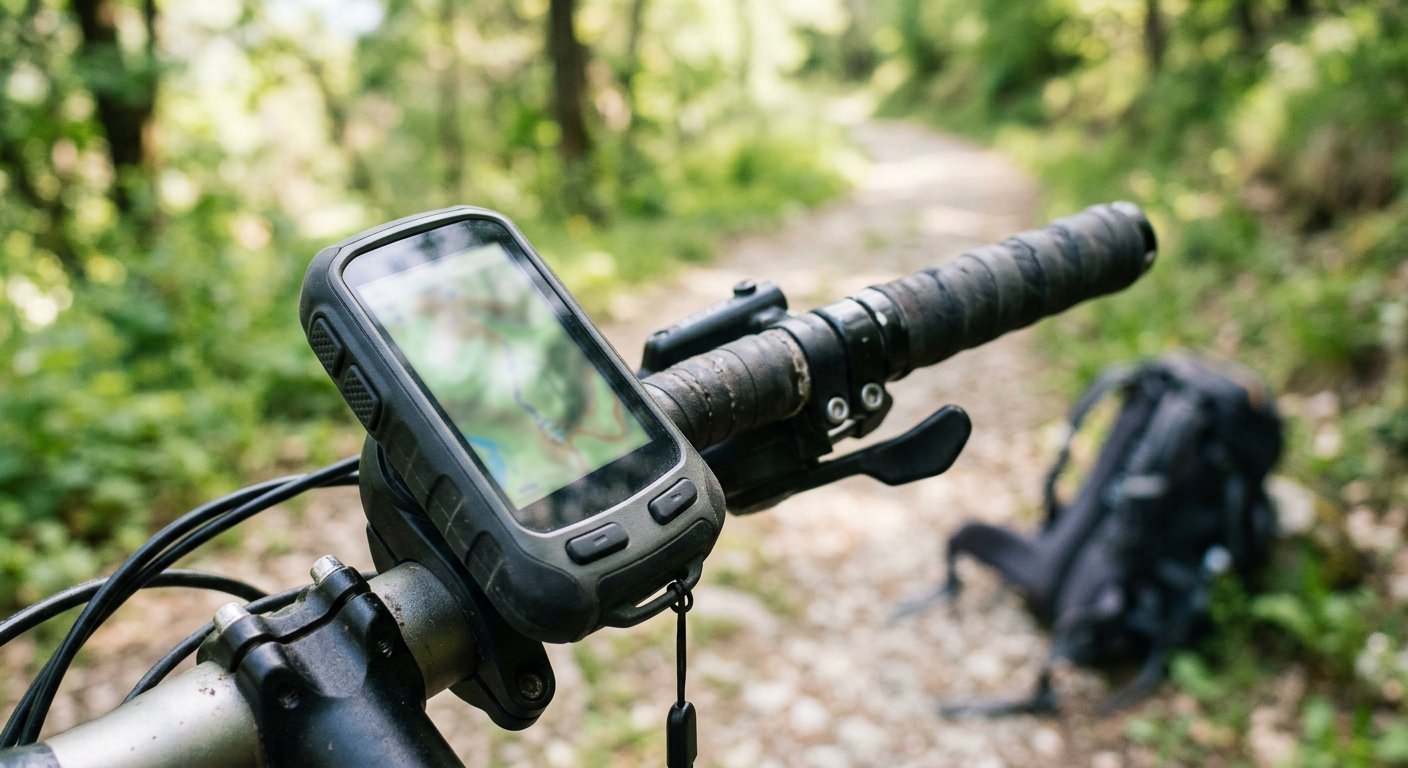
Activity Recording is the on-device log of where you’ve been — the "breadcrumb" line you see on the map. Unlike inReach Tracking, it doesn’t send anything anywhere; it just records on the unit.
- Manually start/pause/resume/save: open the status page (swipe down from the top, or tap the power button once), select Activity Recording, and use the on-screen controls to start, pause, resume, or save the activity.
- Stop and save: when you finish, select the stop/save control. Your activity is saved as a Recorded Activity (and, depending on your setting, as a track).
A nice tip from experienced owners: turn off the auto-start so you control it manually.
"With this setting turned off, you can manually start recording via the Recording Controls… then when you have finished your activity, you can save the activity." — Garmin community forums
Key Settings Worth Knowing
Four settings will shape how your tracking behaves — all worth setting before a trip:
| Setting | Path | Why it matters |
|---|---|---|
| Auto Track | Setup > Tracking |
Auto-starts inReach Tracking when the unit turns on. |
| Link with Recording | Setup > Tracking |
If on, inReach Tracking and Activity Recording start/stop together from either side. |
| Auto Pause | Setup > Tracking |
Stops recording your path when you’re not moving (saves battery & keeps the track clean). |
| Output Format | Setup > Recording > Advanced Setup |
Save as FIT, or GPX + FIT. GPX is what most mapping apps expect; FIT keeps fitness data. |
There’s also an Auto Save option under advanced recording settings (When Full / Auto / Daily / Weekly / Never). Note the device filters the track when it nears ~20,000 points so it doesn’t run out of memory on a long trip.
Garmin Montana 700i Specs
| Spec | Value |
|---|---|
| Display | 5" glove-friendly, daylight-readable touchscreen (800×480) |
| Build | MIL-STD-810 (thermal, shock, water, vibration); IPX7 water-rated |
| Satellite | inReach two-way messaging + 24/7 SOS |
| Maps | Preloaded topo + City Navigator (routable roads); BirdsEye satellite imagery |
| Positioning | Multi-GNSS (GPS, GLONASS, Galileo) + ABC sensors (altimeter, barometer, compass) |
| Battery | Up to 18 h GPS mode; up to 330 h Expedition mode |
| Storage | 16 GB + microSD (up to 32 GB) |
| Waypoints | 10,000 |
| Weight | ~14.5 oz |
Is the Montana 700i Still Worth It in 2026?
Honest answer: it’s a brilliant device, but the original Montana 700i has been discontinued. Garmin now sells the updated Montana 710i — essentially the same GPS + inReach unit with current firmware — plus the 750i/760i, which add an 8 MP geotagged camera. If you can find an original 700i cheap, it’s still a fantastic navigator; but if you’re buying new, the 710i is the one to go for.
- Garmin Montana 700i (original, if discounted): see the price
- Garmin Montana 710i (current, GPS + inReach): see the price
- Garmin Montana 750i (adds a camera): see the price
Frequently Asked Questions
What’s the difference between inReach Tracking and Activity Recording on the Montana 700i?
inReach Tracking sends your live location to contacts over the satellite network (Garmin Explore / MapShare). Activity Recording just logs your breadcrumb path on the device. They can be linked or controlled separately via Setup > Tracking > Link with Recording.
Does the Montana 700i have a single Start/Stop button?
No. You start/stop inReach Tracking from inReach > Tracking, and start/pause/resume/save Activity Recording from the status page’s Activity Recording control.
Can I share my adventure route with friends?
Yes. With inReach Tracking active, select inReach > Tracking > Send MapShare to email or text a live tracking link. You can also export the saved activity/track as a GPX or FIT file.
How long does the battery last?
Up to 18 hours in GPS mode and up to ~330 hours (about two weeks) in Expedition mode, which is how it can go all day and beyond.
Is the Montana 700i still made?
The original 700i has been discontinued; the current equivalent is the Montana 710i (GPS + inReach) or the 750i/760i (adds an 8 MP camera).
For serious off-grid trekkers, the Garmin Montana 700i’s Start/Stop tracking is genuinely two tools in one — a live-location satellite tracker so people know you’re on the move, and an offline breadcrumb recorder for your own reference. Master both, and you’ve got a reliable record of every adventure. If you’re buying new, grab the newer Montana 710i instead; and pair it with an action camera to relive the trip — see our GoPro Hero 10 review and the GoPro 10 vs 9 comparison.
Gadgetping tests gadgets from Amazon, AliExpress and Flipkart so you buy the right one — not the loudest one: real specs, real prices, owner consensus over the spec sheet. More of our outdoor and gear roundups live in the Accessories category.